Getting started with TIA MCP in 15 minutes
From downloading the trial to your first block in TIA Portal. You install TIA MCP, connect an AI assistant, open a project and try ten prompts you simply copy. Reading only at first, then a first write that you check yourself.
- Windows 10 and 11 (64-bit)
- TIA Portal V17 to V21
- 7 days free
- ChatGPT, Claude, Copilot or a local model
What you will need
TIA MCP is an add-on for TIA Portal by Benešl Automation. It connects an AI assistant to the project you have open through the official TIA Portal Openness interface. MCP (Model Context Protocol) is an open standard for connecting tools to AI. The AI then reads blocks, tags and hardware and changes them on your instruction. TIA MCP is not a Siemens product.
Windows and TIA Portal
Windows 10 or 11 (64-bit) and TIA Portal V17 to V21 with TIA Openness installed. Openness is an option in the TIA Portal setup.
The Siemens TIA Openness group
The Windows user must be in the "Siemens TIA Openness" group. The installer adds them: you confirm the administrator prompt once, then sign out and sign in again.
An AI assistant
Claude Desktop, VS Code with GitHub Copilot, Cursor and others, ChatGPT through remote access, or the copilot in the TIA MCP web interface with your own API key or a local model.
A project to try
For the first tries, a copy of a project or a new empty one. The project must be in your TIA Portal version; Openness does not upgrade an older version when opening.
AI in TIA Portal step by step
Five steps from installation to a connected project. If you already have TIA MCP installed, start at step 4.
-
Download the trial and install TIA MCP
Download the Windows installer from the Licence page. The trial runs for 7 days: unlimited project reading and 50 writes to the project. You need no Python or other software, and installation takes about five minutes.
Run the installer and choose Install for me only. The task that adds you to the Siemens TIA Openness group is preselected. On the Licence page at the end of the wizard, choose the trial, or sign in with your Benešl Automation account if you already have a licence.
All wizard options, silent installation and troubleshooting are described in the installation guide.
-
Connect your AI assistant
The installer finds the AI clients on your computer and registers TIA MCP in them. Programs it finds are preselected, and only a tia-portal entry is added to their settings.
- Claude Desktop
- Claude Code
- Cursor
- VS Code + GitHub Copilot
- Visual Studio 2022 / 2026
- Windsurf
- Google Antigravity
- Gemini CLI
- OpenAI Codex
- LM Studio
ChatGPT, Claude.ai and Microsoft 365 Copilot run in the cloud, so they connect through remote access with OAuth sign-in. By default, remote clients get read-only tools.
After installation, quit the AI client completely and start it again, including Claude Desktop in the notification area. On the first connection, confirm the Openness dialog in TIA Portal.
A client you install later is registered from the Start menu: Benešl Automation → TIA-MCP → Register TIA-MCP in AI clients.
-
Or use the web interface with its copilot
Without an AI client you can start in the TIA MCP web interface. It runs only on your computer, and its Copilot page has a chat that uses the same tools as the AI clients.
Open it from the Start menu (TIA-MCP – web interface); the address is http://localhost:8000. You choose the copilot's model: Claude, Gemini or OpenAI with your own API key in the .env file, or a local model through Ollama or LM Studio that works without internet.
The interface is in Czech, English, German and Polish. Until you turn on the direct writes switch, the copilot only proposes project changes as a plan for approval.
Since version 2.19.0 the web interface has a Getting started page. It checks the TIA Portal connection, the open project, the write mode and the licence, shows the AI clients and offers the same ten prompts as this guide.
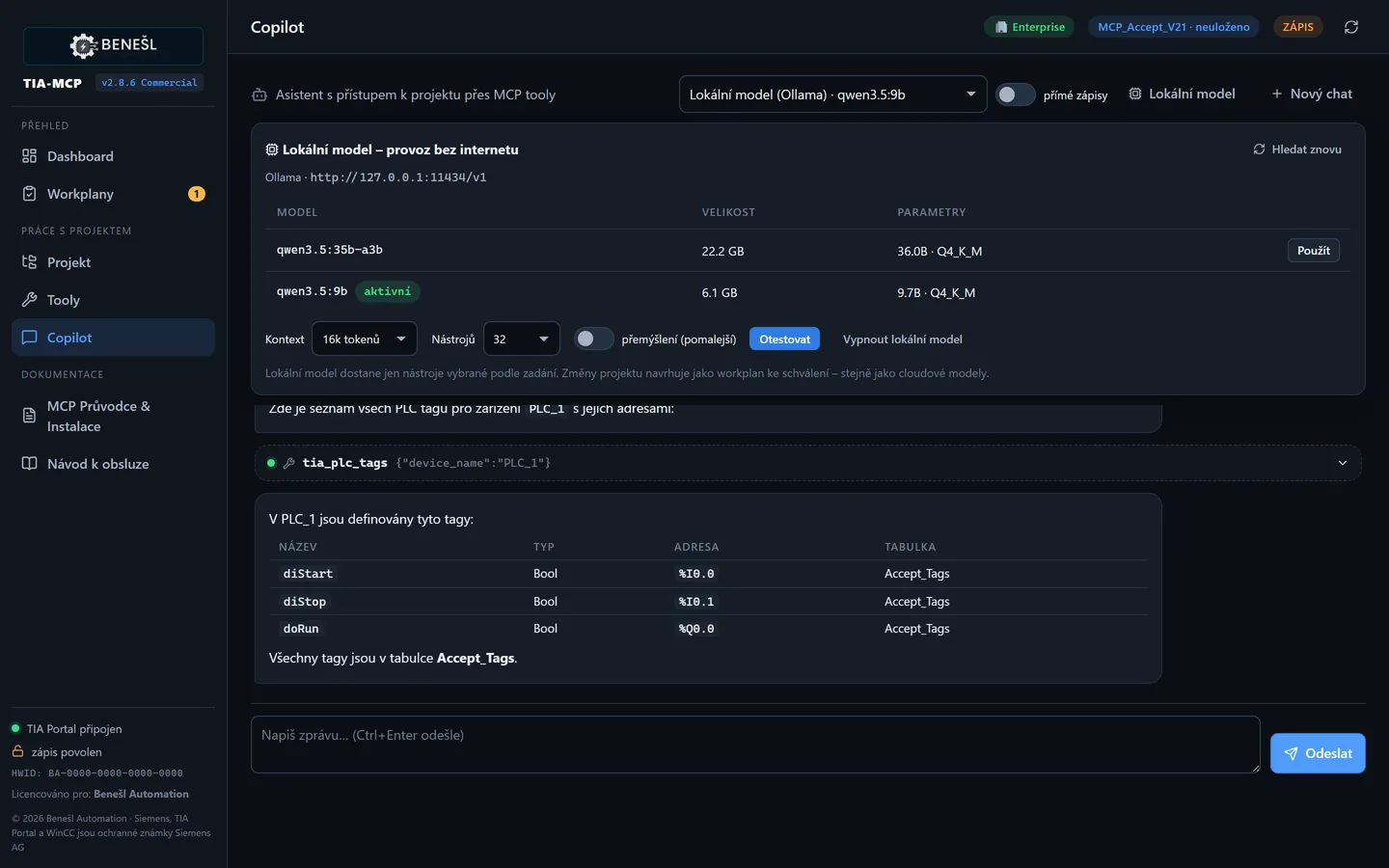
The copilot with a cloud or local model -
Connect to TIA Portal and open a project
Start TIA Portal. Open the project by hand, by asking your AI assistant, or in the web interface on the Dashboard in the Project panel.
Connect to the running TIA Portal and open the project D:\Projects\Line_1\Line_1.ap21.TIA MCP tool:
connect_to_tia,open_projectFor experiments you can create an empty project. Creating it is a write, so do it before you switch on read-only mode.
Create a new empty project AI_Test in the folder D:\Projects.TIA MCP tool:
create_project -
Start in read-only mode
By default TIA MCP may write to the project. For a first look we recommend read-only mode: the AI reads, analyses and suggests, but changes nothing.
Switch the mode on the Dashboard of the web interface, with the Lock_ReadOnly.bat file in the TIA MCP folder, or with this prompt:
Switch TIA MCP to read-only mode.TIA MCP tool:
tia_set_write_modeThe AI can lock, but only you can unlock. The AI client shows you a confirmation prompt. If it cannot, you unlock with the switch on the Dashboard or with the Unlock_Write.bat file.
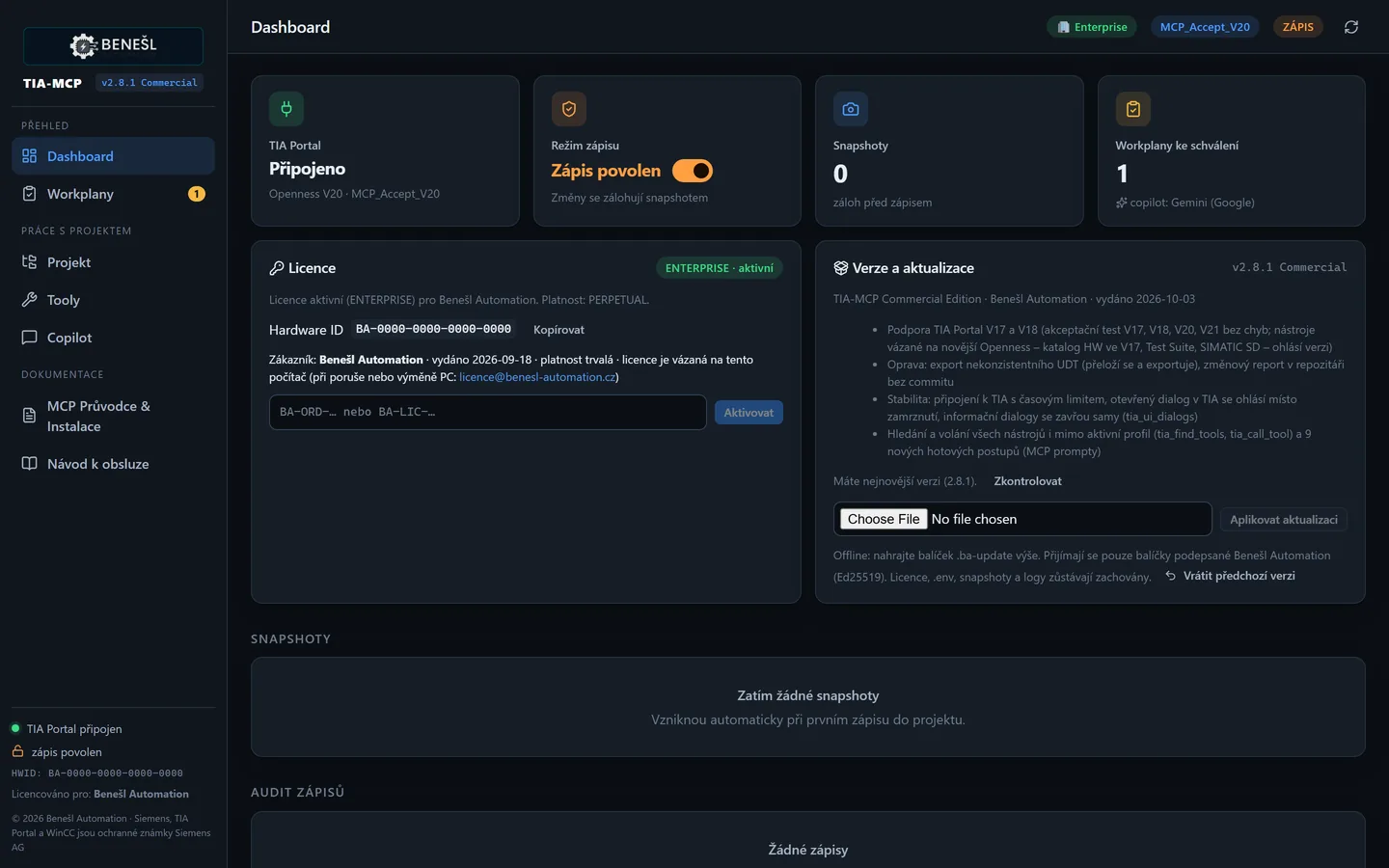
Write mode and backups on the Dashboard
The first 10 prompts for AI in TIA Portal
Copy a prompt into your AI assistant or copilot and adjust the names of PLCs, blocks and folders to your project. The first five only read, so they also work in read-only mode. Each lists the tool the AI usually uses. The model may choose a different route, and you will see the tool names in the AI client at each step.
You will find the same prompts in the TIA MCP web interface on the Getting started page. The Try in Copilot button opens the copilot with the prompt filled in, and you send it yourself. The page replaces PLC_1 with a PLC from the open project, and you can tick off the prompts you have tried.
Read only: get to know the project
-
Project overview
Give me an overview of the open project: which devices it contains, how many PLC blocks it has by type and language, and whether any blocks are inconsistent.TIA MCP tool:
tia_project_overviewWhat to expect: A short summary: PLCs with block counts by type and language, F-CPU, inconsistent blocks, tag tables and UDTs, HMI devices with their number of screens. A good first step with a project you don't know.
-
List of blocks
List all FBs and FCs in PLC_1 with their number, language and date of last change.TIA MCP tool:
tia_list_blocksWhat to expect: A table of blocks with type, number, language, folder path and change date. For a large PLC the AI loads it page by page.
-
Explain a block
Explain what block FB_Motor in PLC_1 does: inputs and outputs, the main logic and under which conditions the output switches on.TIA MCP tool:
tia_read_block_scl,tia_block_networksWhat to expect: A plain-language description of the interface and logic. For LAD and FBD the AI reads networks as logic expressions, so it works for ladder too.
-
Find unused objects
Find unused blocks, data types and PLC tags in PLC_1 and save the list to Excel.TIA MCP tool:
tia_find_unusedWhat to expect: A list of unreferenced objects and dead code. It is a basis for clean-up, not for deleting: the tool does not see references from HMI, OPC UA or absolute addresses. Check the cross-references before deleting.
-
Program review
Review the program in PLC_1 and list errors and warnings sorted by severity, worst blocks first.TIA MCP tool:
tia_review_programWhat to expect: A code review of all FBs, FCs and OBs: multiple writes, unused variables, CASE without ELSE, conditional timers, magic numbers and more. A summary by severity and the worst blocks; a large PLC is checked in the background.
First write: block, compile, documentation and Git
Prompt 6 writes to the project, so enable writing on the Dashboard. The others do not change the project. The trial gives you 50 writes, and a backup is made before every write.
-
Write an FB in SCL
Write a function block FB_Pump in SCL in PLC_1: start and stop, dry-run protection (low level for more than 5 s), contactor feedback check within 2 s and a fault with acknowledgement. Follow the project conventions.TIA MCP tool:
tia_get_conventions,tia_create_scl_blockWhat to expect: The AI reads the project conventions and writes an SCL source. TIA Portal generates the block from it and compiles it. A snapshot is taken before the write. If writing is locked, the AI does not write the block, and the copilot in the web interface prepares a plan for approval.
-
Compile and fix
Compile FB_Pump and fix the errors until the block compiles without errors. Then compile the whole PLC_1 and list only the errors.TIA MCP tool:
tia_compile_block,tia_compile_deviceWhat to expect: Compile errors and warnings with their location in the code. The AI fixes the source and compiles again. Compiling the whole PLC shows whether the new block broke anything else.
-
Why the machine has stopped
Why isn't the conveyor running? The signal "DB_Conveyor".Run is FALSE. Trace the logic backwards and tell me which condition blocks it and what I should check.TIA MCP tool:
tia_diag_whyWhat to expect: A backward analysis of the logic down to the blocking condition and what to check. It fills in live values from the PLC (OPC UA, Web API, S7 PUT/GET) or from PLCSIM; without them it prepares a watch table. It writes nothing to the PLC.
-
Export documentation
Create software handover documentation for PLC_1 in the folder D:\Handover: project overview, hardware and IP addresses, call hierarchy, block descriptions, I/O and the code review result.TIA MCP tool:
tia_handover_docWhat to expect: A PDF document with the project overview, hardware, call hierarchy, blocks, DBs and UDTs, I/O and a handover record. The AI adds block descriptions from comments and code. The PDF needs LaTeX (MiKTeX or TeX Live); otherwise you get a .tex source. The project is not changed.
-
Git commit
Save a text export of the project to the Git repository D:\Git\Line_1 with the message "FB_Pump – first version".TIA MCP tool:
tia_git_commit,tia_git_diffWhat to expect: Blocks, UDTs, tags and hardware are exported as text and committed; on first use the repository is created. The prompt "What has changed since the last commit?" then shows the difference. Git must be installed on the computer.
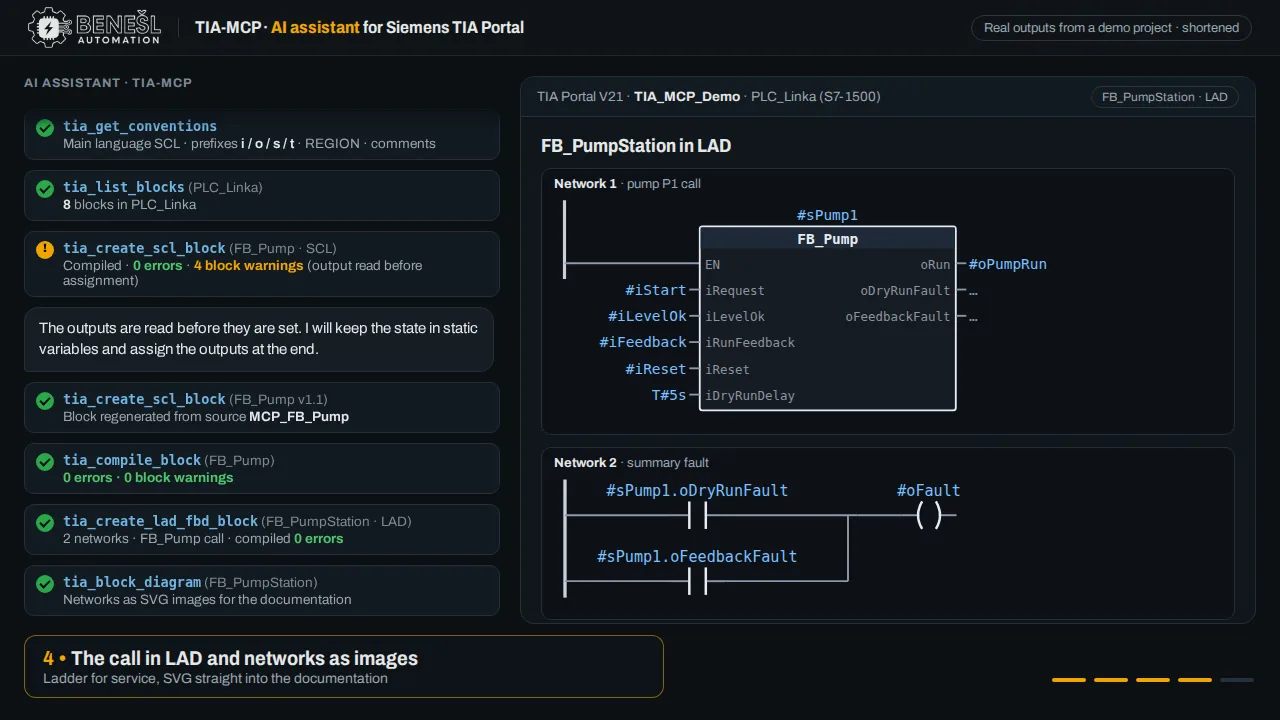
How to check the result
The AI is the programmer's assistant, not a replacement. You are responsible for the program, which is why TIA MCP has several safeguards.
You stay in control of writes
Only a person can unlock the write lock. The AI prepares multi-step changes as a plan that you see on the Workplans page. On the Dashboard you can forbid the agent to approve plans; then only you approve a plan with the Approve button.
Snapshot and restore
Before every write the object being changed is backed up. You restore the backup on the Dashboard with one click or with the prompt "Undo the last change". If the object cannot be backed up, the write is not carried out.
Compiling in TIA Portal
A new block is compiled straight away. Before downloading to the PLC, compile the whole device, go through the warnings and read the block logic yourself.
Testing in PLCSIM
The prompt "Download PLC_1 to PLCSIM and test FB_Pump" downloads the program to the simulator only. With PLCSIM Advanced the AI runs a unit test with the given inputs and expected outputs.
Real PLC only with your permission
Downloading to a real PLC is switched off for the agent by default. Only you can switch it on, on the Dashboard, and even then it runs only after a preview and confirmation with the device name.
Audit and differences
Every write is in the audit on the Dashboard. A Git diff or a change report shows what has changed in the project since last time.
Where to go next
Details for each area. For teams we offer a hands-on AI for TIA Portal training.
AI for TIA Portal
What AI in TIA Portal can do and how it works with your project.
SCL generator
FBs, FCs, DBs and UDTs from a description, instruction check and compiling.
Testing in PLCSIM
Unit tests and a virtual FAT on the simulator.
TIA project documentation
Handover documentation, block help and manuals.
Git and project versions
Text export, commits, differences and change reports.
AI for WinCC Unified
Screens, tags, alarms and HMI testing.
Diagnostics: why the machine has stopped
Service analysis with live values from the PLC.
Data and know-how
What the AI sees of your project and how to work without the cloud.
All TIA MCP tools
An overview of the tools by area.
FAQ about getting started with TIA MCP
Do I need to know what MCP is or know Python?
No. The installer contains everything needed, including Python, and registers TIA MCP in the AI clients itself. You then talk to the AI in plain language, as in this guide.
Can I really do it in 15 minutes?
Installation takes about five minutes, connecting the project and the first prompts another ten, if you already have an AI client or an API key. A local model takes longer to download because it is several GB.
The AI client does not see the TIA MCP tools. What now?
Quit the client completely and start it again. If the tools are still missing, run Register TIA-MCP in AI clients from the Start menu. If TIA MCP does not connect to TIA Portal, ask the AI to "Run the TIA MCP diagnostics": the tia_doctor tool checks Openness, the user group, the licence and the connection and tells you what to fix.
The AI says a tool is not available
Some clients can handle only a limited number of tools, GitHub Copilot for example at most 128, so they get a narrower set. The AI finds a missing tool with tia_find_tools and calls it with tia_call_tool. Otherwise choose all tools in the installer or in Register TIA-MCP in AI clients.
Will my project go to the cloud?
TIA MCP works with the project locally on your computer. A cloud AI assistant receives only the data it requests for the task. With a local model through Ollama or LM Studio the project never leaves your network.
What can the trial do?
The trial runs for 7 days with all tools. Reading the project is unlimited, and there are 50 writes to the project. After purchase you activate the licence in the licence manager without reinstalling.
How much is a licence?
A PRO licence costs €295 per year per computer, excluding VAT. For companies with several computers we offer an Enterprise licence.
Siemens, SIMATIC, TIA Portal, WinCC and S7 are trademarks of Siemens AG. TIA MCP is an independent product of Benešl Automation and not a product of Siemens. Claude, ChatGPT, Gemini, Copilot and Cursor are trademarks of their respective owners.